Showing posts with label xterm. Show all posts

Wednesday, June 8, 2011

Copy-paste problem from Unix terminals to MS-Office products

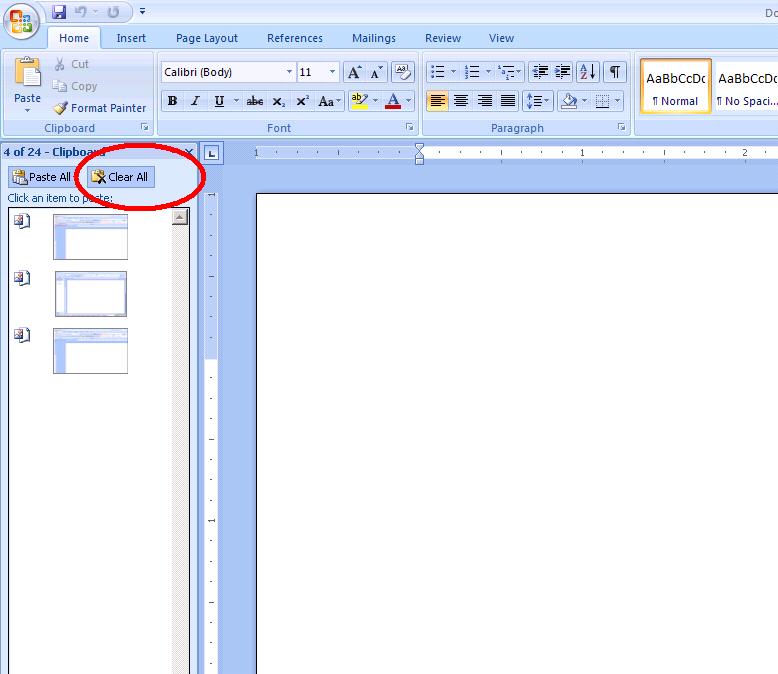
A user walked into my office and told that he is able to copy-paste from Unix terminal (xterm) to mspaint, notepad etc but he can not do it on Microsoft Word. Upon a little research, I found somewhere that MS Office uses its own cache and the size of this cache is 4MB (it seemed to be an old article, but lets say it is still valid). So, I suggested user to clean-up his MS-Office cache and it did the magic. Following is a two step process to clean up the cache of MS-Office products.


Copy-paste not working in xterm

Ok, so many times users calls for their copy-paste problem. In some cases, it is resolvable problem while in other cases, it is just some cache-flush issue.

Here is my list of steps which may help:

1) Check for disk quota –It includes user’s home directory + the project he/she is working on. If any quota limit is over the limit, copy/paste will also not work!

2) Check for volume (if NFS location) or filesystem hosting above directories – If volume or filesystem is full, then also same problem.

3) Most interesting: If it is “xterm” related problem then ask user to use “SHIFT & select” and then paste. It does magic. The root cause is “When an application sets xterm to any of its mouse tracking modes, it reserves the unshifted mouse button clicks for the application's use. Unless you have modified the treatment of the shifted mouse button events (e.g., with your window manager), you can always do cut/paste by pressing the shift key while clicking with the mouse.”

Please feel free to add your own expertise to resolve the same problem in this list!

Friday, March 13, 2009

Xterm - tips and tricks

xterm terminal is a powerful, programmable and full with options. It is available with almost all variants of Unix OS.

The following reference is good for at least Solaris operating system.

Explanation of switches available for xterm:
======================================================================
-T "Title name" : Used for displaying title
-bg : For background color
-fg : For foreground color
-fn : For font name (it can be name as well as size also)
-e : This x-application will open in xterm window
-geometry 180x60 : To define xterm's window size and location (optional)
-display : To send the xterm's display on "Hostname" (i.e. for remote display)

How to open Xterm on local system:
======================================================================
xterm -T "This xterm is from: `whoami`@`hostname`" -bg black -fg white -fn fixed -geometry 180x60
xterm -T "This xterm is from: `whoami`@`hostname`" -bg black -fg white -fn "*-fixed-*-*-*-20-*" -geometry 180x60


How to open Xterm on remote system:
======================================================================
xterm -T "This xterm is from: `whoami`@`hostname`" -bg black -fg white -fn fixed -display 10.10.10.230:6.0
xterm -T "This xterm is from: `whoami`@`hostname`" -bg black -fg white -fn "*-fixed-*-*-*-20-*" -display 10.10.10.230:6.0
xterm -T "This xterm is from: `whoami`@`hostname`" -bg black -fg white -fn fixed -display 10.10.10.230:6.0 -e xclock