
Showing posts with label Microsoft Windows. Show all posts
Showing posts with label Microsoft Windows. Show all posts
Wednesday, December 5, 2012


Windows batch script for pinging and nslookup entire VLAN
Following batch file can ping and run nslookup on all the hosts in 192.168.1.10-192.168.1.254 hosts. All you need to do is copy and save the file as filename.bat and run it.
@echo off

for /L %%N IN (10,1,254) do (
echo 192.168.1.%%N
nslookup 10.68.68.%%N
ping 192.168.1.%%N
echo **********************************************
)
Monday, July 16, 2012
Windows script - For loop
I had a requirement where I was supposed to get nslookup output from entire subnet. If it were Unix, it was easy for me :) but I am not much into windows therefore I am writing it here so that one day again I will re-use this code:
c:/> type nslookup_using_for_loop.bat
@echo off

for /L %%N IN (10,1,254) do (
echo 192.168.1.%%N
nslookup 192.168.1.%%N
echo **********************************************
)
Basically, the above script will run nslookup on all IPs ranging between 192.168.1.10 and 192.168.1.254 Enjoy!!! :)
Thursday, February 9, 2012
Microsoft Excel forumula for text
I had a requirement where I was having an excel sheet and based on one column's data (which is a text), I had to populate another column to provide analysis.
Basically, I wanted to find keyword prjtmp and if it is found in given cell, I want to put "DONT WORRY" in the result column. Below was the formula I put in the desired cell and BOOM!!! It worked!!! :)
Basically, I wanted to find keyword prjtmp and if it is found in given cell, I want to put "DONT WORRY" in the result column. Below was the formula I put in the desired cell and BOOM!!! It worked!!! :)
=IF(ISNUMBER(SEARCH("*prjtmp*",C2)),"DONT WORRY","")
Wednesday, June 15, 2011
Wednesday, June 8, 2011
Copy-paste problem related to Windows clipboard
Here is the two step process to clean up Windows clipboard:
Start -> Run -> Clipbrd -> Edit -> Delete – Clipboard contents cleared!!!
Here is GUI:

While doing a little more research on copy-paste problems, I also came across a method to clear the clipboard of Windows (this is at least true for Windows-XP).

Start -> Run -> Clipbrd -> Edit -> Delete – Clipboard contents cleared!!!
Here is GUI:

While doing a little more research on copy-paste problems, I also came across a method to clear the clipboard of Windows (this is at least true for Windows-XP).

Copy-paste problem from Unix terminals to MS-Office products
A user walked into my office and told that he is able to copy-paste from Unix terminal (xterm) to mspaint, notepad etc but he can not do it on Microsoft Word. Upon a little research, I found somewhere that MS Office uses its own cache and the size of this cache is 4MB (it seemed to be an old article, but lets say it is still valid). So, I suggested user to clean-up his MS-Office cache and it did the magic. Following is a two step process to clean up the cache of MS-Office products.


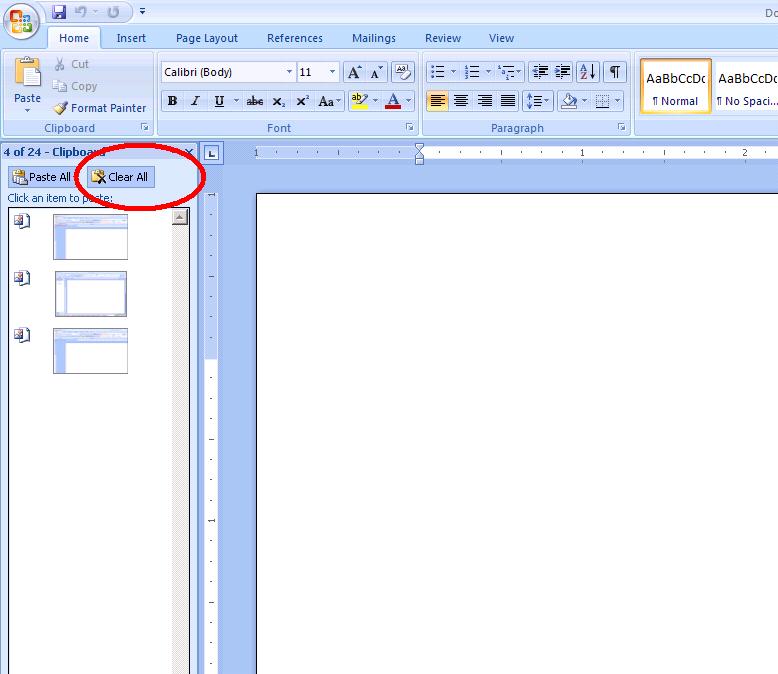
Copy-paste not working in xterm
Ok, so many times users calls for their copy-paste problem. In some cases, it is resolvable problem while in other cases, it is just some cache-flush issue.
Here is my list of steps which may help:
1) Check for disk quota –It includes user’s home directory + the project he/she is working on. If any quota limit is over the limit, copy/paste will also not work!
2) Check for volume (if NFS location) or filesystem hosting above directories – If volume or filesystem is full, then also same problem.
3) Most interesting: If it is “xterm” related problem then ask user to use “SHIFT & select” and then paste. It does magic. The root cause is “When an application sets xterm to any of its mouse tracking modes, it reserves the unshifted mouse button clicks for the application's use. Unless you have modified the treatment of the shifted mouse button events (e.g., with your window manager), you can always do cut/paste by pressing the shift key while clicking with the mouse.”
Please feel free to add your own expertise to resolve the same problem in this list!
Here is my list of steps which may help:
1) Check for disk quota –It includes user’s home directory + the project he/she is working on. If any quota limit is over the limit, copy/paste will also not work!
2) Check for volume (if NFS location) or filesystem hosting above directories – If volume or filesystem is full, then also same problem.
3) Most interesting: If it is “xterm” related problem then ask user to use “SHIFT & select” and then paste. It does magic. The root cause is “When an application sets xterm to any of its mouse tracking modes, it reserves the unshifted mouse button clicks for the application's use. Unless you have modified the treatment of the shifted mouse button events (e.g., with your window manager), you can always do cut/paste by pressing the shift key while clicking with the mouse.”
Please feel free to add your own expertise to resolve the same problem in this list!
Saturday, March 20, 2010
How to make triple boot work?
This was one of my personal project to make triple boot work on a laptop. For that, I first created 4 fdisk partitions (2 for windows, 1 for fedora, 1 for OpenSolaris). I installed windows first, then fedora (without grub) and then finally OpenSolaris. OpenSolaris's grub.lst file needed some tweaking to make triple boot work. Here is what I edited in grub.lst file.
WARNING: Please dont try this on any system which contains some data without data backup because it can be disastrous as well :)
WARNING: Please dont try this on any system which contains some data without data backup because it can be disastrous as well :)
#pragma ident "@(#)menu.lst 1.2 07/01/10 SMI"
#
# default menu entry to boot
default 0
#
# menu timeout in second before default OS is booted
# set to -1 to wait for user input
timeout 10
#
# To enable grub serial console to ttya uncomment the following lines
# and comment out the splashimage line below
# WARNING: don't enable grub serial console when BIOS console serial
# redirection is active!!!
# serial --unit=0 --speed=9600
# terminal serial
#
# Uncomment the following line to enable GRUB splashimage on console
splashimage /boot/grub/splash.xpm.gz
#
# To chainload another OS
#
# title Another OS
# root (hd, )
# chainloader +1
#
# To chainload a Solaris release not based on grub
#
# title Solaris 9
# root (hd, )
# chainloader +1
# makeactive
#
# To load a Solaris instance based on grub
# If GRUB determines if the booting system is 64-bit capable,
# the kernel$ and module$ commands expand $ISADIR to "amd64"
#
# title Solaris
# root (hd, ,x) --x = Solaris root slice
# kernel$ /platform/i86pc/kernel/$ISADIR/unix
# module$ /platform/i86pc/$ISADIR/boot_archive
#
# To override Solaris boot args (see kernel(1M)), console device and
# properties set via eeprom(1M) edit the "kernel" line to:
#
# kernel /platform/i86pc/kernel/unix-B prop1=val1,prop2=val2,...
#
#---------- ADDED BY BOOTADM - DO NOT EDIT ----------
title Solaris Express Community Edition snv_86 X86
kernel$ /platform/i86pc/kernel/$ISADIR/unix
module$ /platform/i86pc/$ISADIR/boot_archive
#---------------------END BOOTADM--------------------
#---------- ADDED BY BOOTADM - DO NOT EDIT ----------
title Solaris xVM
kernel$ /boot/$ISADIR/xen.gz
module$ /platform/i86xpv/kernel/$ISADIR/unix
/platform/i86xpv/kernel/$ISADIR/unix
module$ /platform/i86pc/$ISADIR/boot_archive
#---------------------END BOOTADM--------------------
#---------- ADDED BY BOOTADM - DO NOT EDIT ----------
title Solaris failsafe
kernel /boot/platform/i86pc/kernel/unix -s
module /boot/x86.miniroot-safe
#---------------------END BOOTADM--------------------
title Windows
rootnoverify (hd0,0)
chainloader +1
#title Windows
# rootnoverify (hd0,1)
# chainloader +1
# Unknown partition of type 5 found on /dev/rdsk/c1t0d0p0 partition: 4
# It maps to the GRUB device: (hd0,3) .
title Fedora
root (hd0,4)
kernel /vmlinuz-2.6.23.1-42.fc8 ro root=/dev/VolGroup00/LogVol00 rhgb quiet
initrd /initrd-2.6.23.1-42.fc8.img
Thursday, October 8, 2009
How to find Window's OS uptime?
Surprising?? Huh?? Unix Administrator talking about windows :)
But like Unix, I tend to keep my laptop up and running (or standby). And sometime, I need to know the uptime because some of Microsoft updates need reboot to take effects.
Here is how to find windows's uptime:
Note the green line is the uptime (or the time system last booted).
More Unix way is shown below:
But like Unix, I tend to keep my laptop up and running (or standby). And sometime, I need to know the uptime because some of Microsoft updates need reboot to take effects.
Here is how to find windows's uptime:
C:\>net statistics server
Server Statistics for \\laptop123


Statistics since 10/7/2009 6:15 PM


Sessions accepted                  1
Sessions timed-out                 0
Sessions errored-out               0

Kilobytes sent                     0
Kilobytes received                 0

Mean response time (msec)          0

System errors                      0
Permission violations              0
Password violations                0

Files accessed                     0
Communication devices accessed     0
Print jobs spooled                 0

Times buffers exhausted

  Big buffers                      0
  Request buffers                  0

The command completed successfully.
Note the green line is the uptime (or the time system last booted).
More Unix way is shown below:
C:\>net stats srv | grep since
Statistics since 10/7/2009 6:15 PM
Tuesday, March 10, 2009
Window's Show desktop troubleshooting
Somehow, my windows laptop's show desktop stopped working. And then here is what I did to make it work again:
1) Open notepad and create a file in any location with the name "Show desktop.scf". In my case, I created it in c:/windows folder. (Though it is not compulsory).
2) Once file is created, open the folder which contains this file and then drag-and-drop this file to "Quick launch" toolbar.
Now I was able to use "Show desktop" again :-)
1) Open notepad and create a file in any location with the name "Show desktop.scf". In my case, I created it in c:/windows folder. (Though it is not compulsory).
C:\WINDOWS>cat "Show desktop.scf"
[Shell]
Command=2
IconFile=explorer.exe,3
[Taskbar]
Command=ToggleDesktop
2) Once file is created, open the folder which contains this file and then drag-and-drop this file to "Quick launch" toolbar.
Now I was able to use "Show desktop" again :-)
Subscribe to:
Posts (Atom)

 Posts
Posts


